

TL;DR
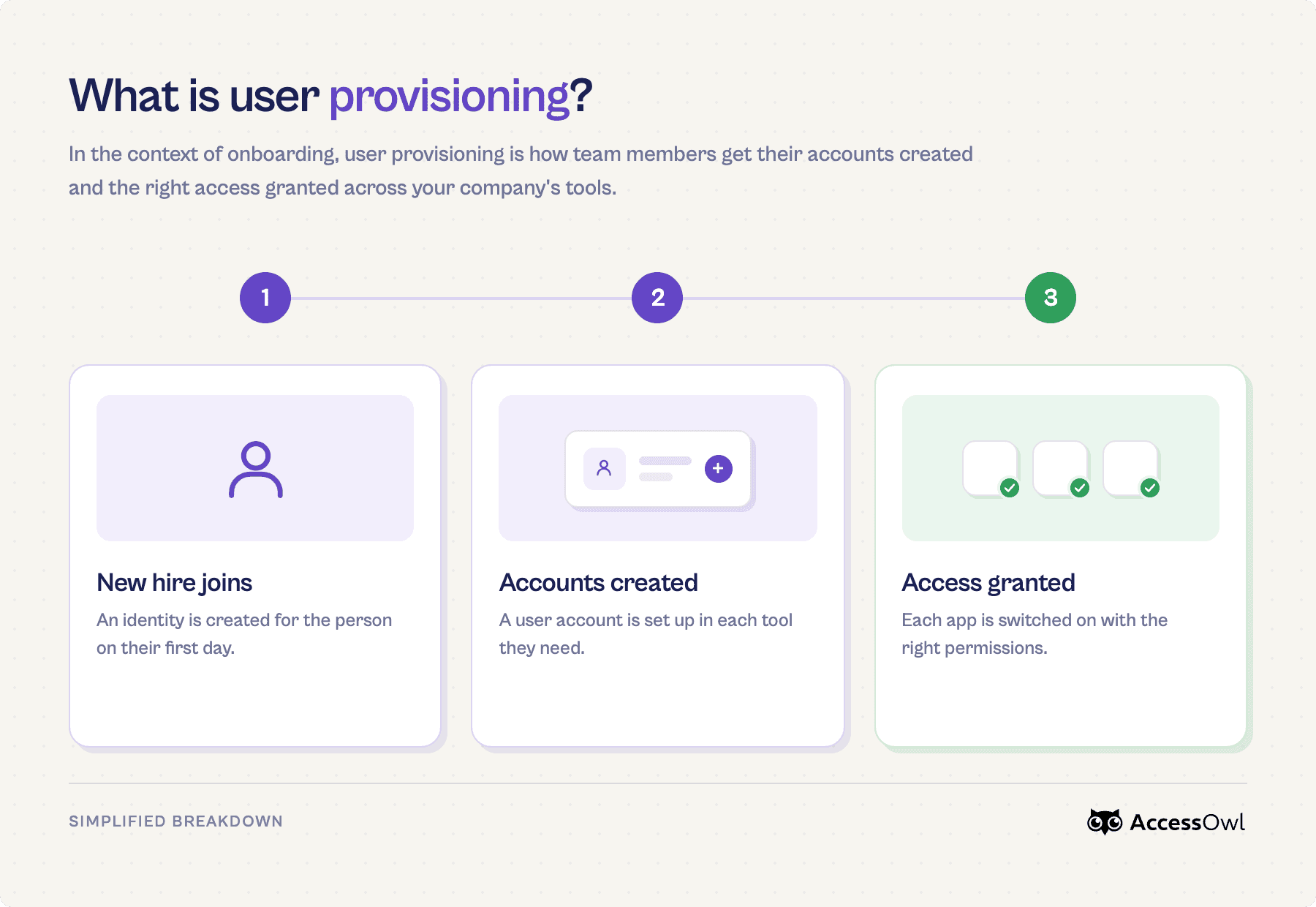
Provisioning covers the full arc of an employee's access to your tools. Account creation, permission assignment (which Google Groups, Slack channels, etc. they get access to), role changes, and deprovisioning that pulls all of that access back when they leave. Every admin on Google Workspace starts out by adding users in the Admin console one at a time. This is the right starting point when hiring is irregular and headcount is low. Past ~50 employees it stops holding up.
The Admin Console reaches Google Workspace apps but every tool outside it ends up provisioned by hand. When a small IT team has to run several onboarding tickets or juggle access requests it starts to eat up 30+ hours every month to provision accounts and chase approvals.
In this blog:
How to provision users inside the Google Admin Console and which apps this approach misses.
Using GAM (open source tool) to script repeated user provisioning tasks.
Understanding Google Groups, Organizational Units, and bulk edits via CSVs in Google Workspace.
When teams choose to add in an IGA layer like AccessOwl, which automates user provisioning on Google Workspace across your whole SaaS stack without SCIM.
Method 1: Provision users manually in the Google Admin console
The Admin console is the built-in way to create a user, license them, place them in the right Organizational Unit, and add them to groups. The process steps below assume you have some familiarity with Organizational Units (OUs). If you're new to them we cover them farther below in how Organizational Units work.
Create and set up the account
Step 1: Add the user
How: Directory → Users → Add new user. Enter first/last name, primary email, choose the Organizational Unit. Set or auto-generate a password, leave "Ask for a password change at next sign-in" on. Link to Official Docs
Note: The Organizational Unit choice is the important one. It drives which policies, services, and licenses the user inherits. Dropping everyone in the top-level OU is a common mistake.
Step 2: Assign the Google Workspace license
How: On the user's profile, open Licenses → Assign. Or set automatic licensing on the Organizational Unit so anyone added to it is licensed automatically. Link to Official Docs
Note: Automatic-licensing-by-OU is the closest native thing to "provision by role." It overrides a license set in a CSV, and can take up to 24 hours to apply.
Step 3: Add the user to the right Google Groups
How: Directory → Groups → add the user as a member of the groups their role needs. Link to Official Docs
Note: Groups are objects that control access. For example, adding a user to a group can grant access to a shared Google drive.
Method 2: Use AccessOwl to automate user provisioning in Google Workspace
AccessOwl is an identity governance and administration (IGA) tool that sits on top of Google SSO and extends it. Google Workspace stays your identity provider (IdP), handling login authentication and the directory. AccessOwl becomes the access management layer above it that fully automates user provisioning.
Google SSO + lightweight IGA is the stack lean teams go to when an enterprise IAM platform like Okta is more than their team size needs and they want to avoid the large price tag with months of implementation. AccessOwl goes live in days and automates the parts of access management that otherwise stay manual.
Why lean teams on Google Workspace use AccessOwl
Automates the full SaaS access management lifecycle: Self serve access requests, faster access reviews for audits, Shadow IT discovery, and more so you get a full IAM toolkit with Google as the IdP layer.
Wider coverage: Provisioning across 400+ apps compared to Google's 57. This includes apps that don't support SSO or SCIM/SAML at all (the 'long tail,' which makes up 75 to 85% of a typical tool stack).
No SCIM tax: Provisioning in AccessOwl runs through Integration Accounts that do not require SCIM, which means no per-app enterprise upgrades. The SCIM tax for 40 users on Slack + Notion would add ~$7,300 a year of costs (per ssotax.org).
Templates and triggers for zero-touch onboarding: Map HRIS attributes (department, role, location, employment type) to an access template and trigger workflows on new hire start dates or employee last days.
Granular provisioning, beyond account creation: It assigns the real access inside each app: Slack channels, GitHub repos and teams, Jira project roles, AWS IAM policies, Salesforce permission sets. The new hire can work on day one instead of logging into empty tools.
Google Workspace (Admin console) | AccessOwl | GAM (Google Apps Manager) | |
|---|---|---|---|
Creates Google accounts | Yes, manually (one by one or CSV) | Yes, automatically (triggered by HRIS or start date) | Yes, scripted in bulk |
Provisions third-party apps | ~57-app catalog only, capped by plan (3 to 100) | 400+ apps, including no-SCIM and no-SSO tools | Only apps whose API you script yourself |
Grants granular in-app access (Slack channels, GitHub repos, Jira roles) | No, creates the account only | Yes, through role templates | Only if you code each app's API |
Setup and upkeep | Manual | Fully automated. 1 click onboarding and offboarding. | You write and maintain the scripts (needs super-admin access) |
Best for | Less than 50 employees, unpredictable hiring, mostly Google-native apps | When access management tasks start taking up hours every week | Bulk Google tasks if you're comfortable scripting |
How to know when you've outgrown manual Google Workspace provisioning
When you're smaller, it's quite clear which person owns which application, so finding them on Slack is fairly easy. But when you're a company of 60 people, it gets more complicated. And when you're a company of 100 people, nobody knows who the application owner is. As you grow, a few people can no longer oversee everything in a simple, manual way. You need proper workflows, so it gets more and more necessary to have a tool like AccessOwl.
Tom Lamers, Strategy & Operations Lead, Drieam
Manual provisioning in the Admin console is fine for a while. It tends to break after ~50 employees where doing it by hand starts to consume considerable time. If you're the only IT person you're flooded with onboarding or offboarding tickets that eat up hours every week. New hires wait days for the access they need to actually start and when an employee leaves, you're not entirely confident that you removed access to all apps at the company.
Teams with a small (or non existent) IT team use AccessOwl to cut user provisioning tasks like onboarding and offboarding from around two hours per person to under 30 minutes.
Method 3: Use GAM (and the Google API) to script User Provisioning
GAM (a free open-source command-line tool) lets you script the account creation runbook and run it in bulk instead of clicking through the UI. It is real automation for the Google side, but it is you building and maintaining the scripts, and it only reaches Google plus any app whose API you wire up yourself.
The provisioning actions GAM is good at
Bulk-creating users, assigning licenses, setting Organizational Units, adding people to groups, and pulling reports.
Rerunning the same setup for every new hire or cohort, once you've written the script once.
A basic command looks like this:
Code is illustrative only. commands vary by GAM version. A list of commonly used commands for IT managers is covered in our article GAM guide for IT managers.
Limitations of scripted provisioning in GAM
This approach creates accounts, but doesn't truly manage access. GAM sets up the Google account, but it won't assign the channels, repos, or roles inside your other third party apps unless you separately script each app's own API and keep that code current.
It only reaches Google Apps and the apps you wire up yourself. Tools that are not connected via API or SCIM/SAML stay manual.
Best when: you've got some scripting comfort, you run bulk operations often, and you want a free path with no vendor.
Understanding the limitations of SCIM provisioning in Google Workspace
Google's auto-provisioning runs on a SCIM-based sync. It works, but IT teams hit the same limits every time. The catalog is small: only around 57 third-party apps can be auto-provisioned at all. And how many of those you can turn on depends on your plan. Business Starter and Frontline Starter cap you at 3 apps, while Business Standard, Business Plus, and Enterprise raise that to 100.
None of this is unique to Google. Any tool that relies on SCIM or SAML (such as Okta) runs into the same problems:
They don't cover your full SaaS stack (~75% of tools in a typical stack are not covered by SCIM/SAML).
SaaS tools gate SCIM/SAML behind an enterprise-tier upgrade which adds unnecessary costs that can pile up to thousands of dollars a year.
Which apps Google Workspace can provision automatically
Google's own apps: Assigning a Workspace license provisions Gmail, Drive, Calendar, Meet, and the rest automatically. Inside Google, one action covers everything.
Third-party apps: Google can auto-provision around 57 of them, the usual names like Slack, Notion, Salesforce, Atlassian, and Figma. You can see the full catalog here. Anything not on that list, you provision yourself.
Tips to automate user provisioning in Google
Organizational units
Group users into OUs so policies and licenses apply to a whole set at once instead of user by user. Turn on automatic licensing for an OU, and anyone you add to it is licensed and set up automatically. OUs decide what settings and license apply to a user; Google Groups decide what a user can reach.
Bulk CSV edits
For onboarding several people at once like a new cohort or an acquisition, skip the one by one setup and bulk-upload a CSV. Go to Directory → Users → Bulk update users, download Google's CSV template, fill in each person (name, orgUnitPath like /Sales, the license column, and Change Password at Next Sign-In set to TRUE), and upload. Google's guide.
Someone still has to build and upload the file for every new wave.
FAQs
How do I add a user in Google Workspace?
In the Admin console, go to Directory → Users → Add new user. Enter their name and email, pick their Organizational Unit, and set a password. From the same profile you can assign a license and add them to the right groups.
Can I bulk create or bulk edit users in Google Workspace?
Yes. Go to Directory → Users → Bulk update users, download Google's CSV template, fill in a row per person, and upload. One file handles up to 150,000 records, so it's the fastest way to onboard a whole cohort at once.
Can Google Workspace automatically create accounts in our other SaaS apps when I add a new hire?
For a limited number of apps, yes. Google's auto-provisioning creates the account in a supported app when you add someone in the Admin console. The catalog is only around 57 apps and by default you are capped at 3 tools that can be auto provisioned. This is a known limitation of Google Workspace as an IdP, and it's when most teams reach for an IGA layer like AccessOwl that sits on top of Google Workspace.
Which apps does Google Workspace auto-provision, and which do I still have to do by hand?
Google can cleanly handle provisioning to Google apps (Google Drive, Gmail, etc.). For third party tools, Google has the ability to auto-provision around 57 apps like Slack and Notion. But these rely on SCIM, which may require you to upgrade to enterprise seats on those tools. And only about 15-25% of SaaS tools are covered by SCIM at a typical company with 100 employees. Anything outside of that list you would have to hand provision. Using a tool like AccessOwl allows you to automatically provision tools outside of SCIM coverage.
How do I automate new-hire onboarding across all our tools if we only have Google Workspace?
Google covers its own apps and the ~57 on its provisioning list. For everything else, teams either script it with GAM or add a layer like AccessOwl that provisions the whole stack without SCIM.
Google Workspace only provisions a handful of apps. How do I cover the rest without moving to Okta or an enterprise IAM?
You lay a lightweight layer on top of the Google SSO you already have. A tool like AccessOwl provisions 400+ apps, including ones with no SCIM, without per-app enterprise upgrades and can be live within days.