
Google Apps Manager (GAM) is a popular command-line tool that provides a more efficient way for administrators to manage domain and user settings in Google Workspace. It is open-source and is available for Windows, Linux, and MacOS.
But why would you need a third-party tool to manage Google Workspace, when you already have the Google Admin Console? To quote Jay Lee, the original creator of the tool, “GAM exists to save you mouse clicks.”
Why use GAM?
Even simple tasks, such as checking a user’s information, require multiple clicks and navigating different sections of the Admin console.
GAM, on the other hand, will return the data in seconds - with one simple command. And GAM's biggest strength is its ability to run multiple commands in parallel.
For example, say you have 10 admin tasks that you need to complete for 100+ users. That would take a lot of time and mouse clicks using Google’s admin console.
With GAM, you could create a text or .csv file running all the specific commands for each task at once. Even better - you can save the scripts, and simply run them again any time you want to perform specific tasks, saving you hours of repetitive busywork (examples of such scripts are shown below).
Intrigued yet? Follow along as we cover all the basics you’ll need to get started with Google Apps Manager, including installation, some classic use cases, and security considerations.
Getting started with GAM: Do you need special training?
All you need to start using Google Apps Manager is familiarity with command line tools and a general understanding of how GAM commands are structured.
Start by practicing single commands on single workspace objects. Then you can gradually move to using CSV for bulk commands on multiple objects. You don’t need to know every GAM command that exists before you get started. Just become familiar with the ones you need to use in your daily tasks.
GAM vs. GAMADV-XTD3 vs. GAM7
you may have seen GAM referred to in a few different ways: the original GAM by Jay Lee, the popular fork GAMADV-XTD3 by Ross Scroggs, and now GAM7. GAM7 is the current official version, and it is the one you want to install.
GAMADV-XTD3 was an extended version of the original legacy GAM. Jay and Ross have since merged their two codebases into a single official version, GAM7, which carries the full advanced command set. So you no longer have to guess which one to start on.
Both are still actively maintained and there is a thriving community of users behind the tool.
Setting up GAM: How to install Google Apps Manager
While the installation will be different depending on your operating system, it follows the same basic steps.
For demonstration purposes, I’ll show you the set up on Windows.
You’ll need super admin access to the Google Admin Console, as you must authorize GAM and grant it API permissions.
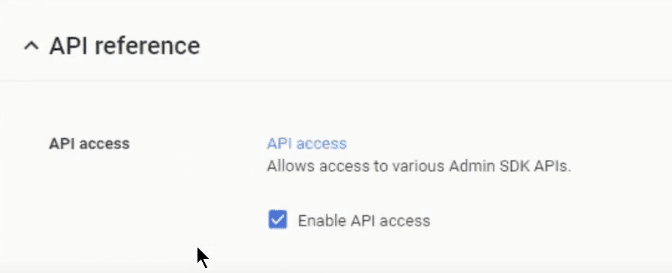
You'll also need to make sure API access for your domain is enabled on the Admin Console.
Step 1: Run GAM installer
For Linux and MacOS, open Terminal and run the command:
This will download GAM, install it, and start setup.
Windows users need to download the latest MSI installer, run it, and follow the installation wizard to completion. The installation may get flagged by Windows Defender or your antivirus. But that’s normal, so don’t worry about it.
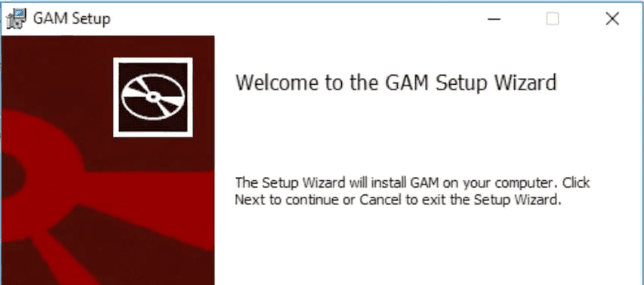
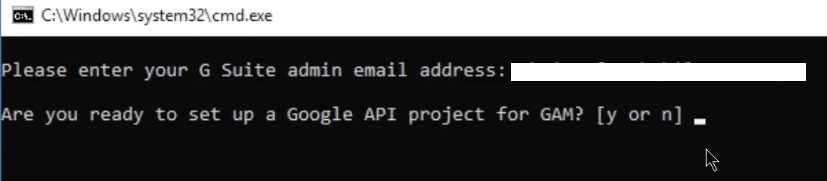
Once installation is complete, you’ll be prompted to enter your workspace super admin email to set up a Google API Project and authorize GAM for admin management.
Step 2: Creating a project
If GAM doesn’t automatically prompt you to set up a project and installation, use this command to start project creation.
You’ll be prompted to enter the Google Workspace admin email that will be used to control GAM.
GAM will then authorize all the necessary APIs and output a URL that you need to open manually, by copying and pasting it to your browser. It will also provide the instructions for creating the OAuth client ID and client secret necessary to complete the process.
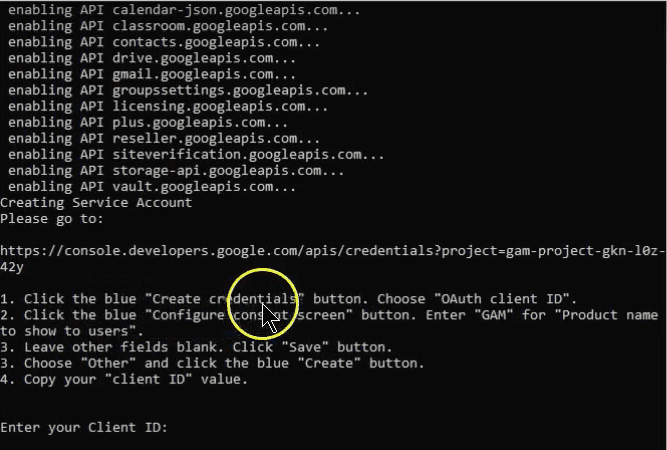
Enter the generated details into the GAM command line as prompted. You’ll then receive the next set of instructions to enable workspace domain-wide delegation and complete the process.
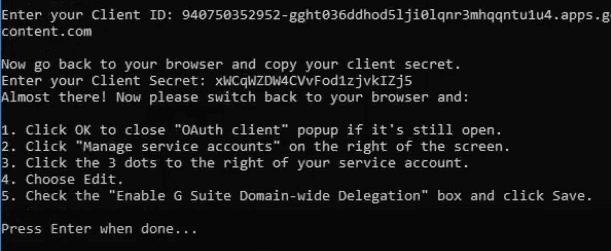
Press “Enter” when done, and you’ll have finished creating the GAM Project.
Step 3: Authorize GAM admin access
You need to authorize GAM to act as your Workspace Administrator to perform management functions — like adding users, modifying group settings, and pulling domain reports.
If you’re not automatically prompted, use this command to start the process.
Enter the workspace admin email you used previously to continue.
You'll be presented with a long list of APIs that GAM can use. By default, the most important APIs are selected. Unless you know what you’re doing, just leave this selection as is, and press “C” to continue to authorization.
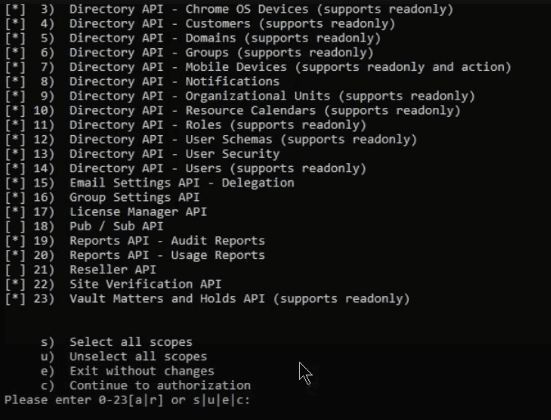
GAM will either open a web page for you or prompt you with a URL to visit to authorize admin access. Choose your account, and allow GAM to access and modify it.
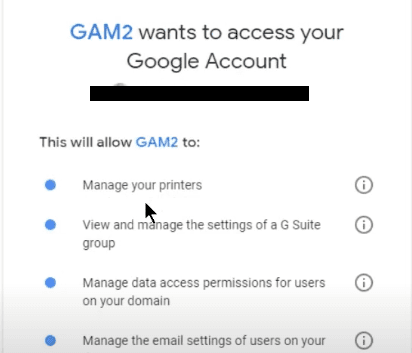
Step 4: Authorize user data and settings access
This process enables GAM to act on behalf of your users, to modify user-specific settings and data such as Drive files, Calendars, and Gmail signatures.
Use this command if you’re not automatically prompted to authorize user data access as part of the installation process.
To complete this step, enter the email of any regular non-admin user in your Google Workspace domain. Ensure this user has the Gmail, Drive, and Calendar services enabled.
Now GAM will attempt to authenticate with each service/scope via the service account and act on behalf of the user you’ve specified. It's expected that the first check will FAIL.
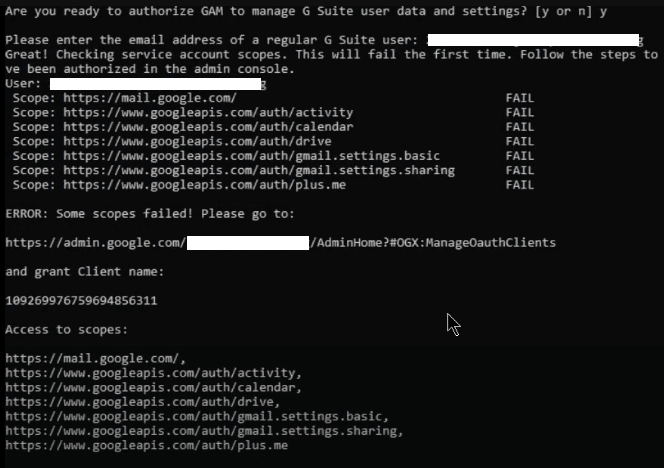
Go to the URL provided, and grant additional access to the scopes provided. If the check fails again, give it more time and recheck.
And you’re done — GAM is installed and ready to go. If you run into additional trouble, the GAM Wiki is always a great resource for you to reference.
Common GAM Commands for everyday workspace management tasks
I’m not even going to try to cover all GAM commands here, as it would be nearly impossible. Instead, we’ll briefly explore a few commands for everyday workspace management tasks.
You can access the full GAM commands list on the GAM Wiki. There’s also a GAM cheat sheet. Despite being created in 2020 the cheat sheet is invaluable once you’ve understood the basic structure of GAM commands.
Here are examples of 10 areas where you can leverage GAM to make your work easier as a Google Workspace administrator.
1. Edit, Create, or Delete Users, Groups, or Organizational Units (OUs)
Some basic commands in this category include:
Command to get information — like names, customer ID, last login, license status, mailbox status, etc. — for users on your domain.
Command to get information on groups, such as group members and their permissions.
Command to create a new user account.
Command to delete a user.
You can take these commands to the next level by including additional parameters, depending on what you’re trying to achieve.
For instance:
Here’s a command to update groups with members from any organizational unit you specify. You can replace “member” with “owner” or “manager” to change roles.
You can also choose to update the group with one specific user, users from another group, users listed on a CSV file, or all the users in your domain, by modifying the “ou” parameter.
But you may find it easier to start light, and then expand your commands as you grow your GAM skills. Learn a few commands that you need regularly, and build up from those.
Google Groups and OUs is the standard way Google admins try to deploy "Role Based Access Control". These essentially serve as templates that speed up onboarding or keep access more organized. In another guide we explain how to approach RBAC in Google Workspace.
2. License management
Command to assign a license for the specified SKU (product ID) to a user or number of users. You can modify the “user” parameter to assign the license to a group, organizational unit (OU), or all users in the domain.
Command to ensure that all users in the specified organizational unit have the same licenses assigned to them. If a user has a different license, it will be revoked.
Command to update a group’s license.
3. Email management
Command to access the email inbox for all users in your domain and delete any message from a specific sender, with a specific subject, or certain recipients.
Command to delegate email access to a specified user. The delegate and the delegator must be in the same domain.
Command to set a custom signature for all users in the specified organizational unit, based on a file you created. It will also replace the placeholder "{company}" with "AccessOwl"
4. Drive management
Command to generate a spreadsheet containing a list of all externally shared files owned by your users to your admin’s MyDrive.
Command to display all files for all users that contain the text "ProjectX"
5. Calendar management
Command to assign the specified “user email” editing access to the calendar owned by the specified “calendar email.” It will then notify the users of the changes.
Command to remove “user email” rights to the specified calendar.
6. Device management
Command to show all devices in the domain
Command to add a new device to the Google company-owned inventory using the provided information.
These command variations can be used, respectively, to delete, wipe all device data, cancel a pending wipe, approve, or block a user profile on a device.
7. Security and compliance
Command to generate a user activity report for the specified parameters and save it to Google Drive in CSV format.
Here is an example to generate a Google Sheet of Google Meet total usage across your users.
8. Monitor the third-party applications of your users
Command to upload a CSV report of OAuth token activities for the specified user to Drive (a great way to determine if your users are connected to any unauthorized application).
Auditing OAuth tokens like this is one of the core methods for uncovering shadow IT. This only surfaces apps people connected with their Google login, so anything signed up for with a plain email and password will not show up here.
9. GAM Google Chatbot to send alerts
GAM is capable of acting as a Chatbot and sending messages to Chat Rooms or direct messages to users. For instance, you can run GAM on a Windows server and have it start a chat if the server hits a high load.
Here's how to set up a GAM Chatbot.
10. Automating routine tasks
At the advanced level, you can combine multiple commands to automate various processes, like user onboarding and offboarding.
For instance, you can develop a user onboarding process — create the user, send them their passwords, and add them to relevant groups — and create a user provisioning script that you run every time you onboard a new user. You can also do the same for onboarding.
GAM security considerations and mitigation
GAM’s powerful administrative capabilities are also what makes the tool a potential security risk. Considering it can access and modify user inboxes as well as Drive, GAM could have devastating consequences in the hands of a malicious user.
Here are measures to safeguard your GAM installations and prevent unauthorized access:
Avoid leaving your GAM installations unmonitored.
Consider running GAM on a dedicated Virtual Machine (VM) or using Google Cloud Shell.
Practice the principle of least privilege, by setting up Google Cloud Projects with minimal permissions. Or…
Create separate installations of GAM to delegate capabilities, ensuring users have access only to the functions they need.
Secure authentication tokens: The authentication tokens GAM generates during setup remain valid until the associated Google Cloud Project is deleted. Ensure that you store and share them securely.
GAM commands for onboarding and offboarding with Google Workspace
The two tasks admins want to automate first are onboarding and offboarding. Both can be done with a sequence of the commands we already covered, when saved as a script you run each time.
An important thing to understand is that GAM reliably automate Google related access (Drive, Sheets, Gmail), but does not reliably control third-party apps like SaaS tools. Automating the onboarding and offboarding of third-party SaaS apps traditionally requires SCIM provisioning. A more modern approach is to use integration accounts to provision third-party SaaS apps without SCIM.
GAM commands for offboarding with Google Workspace
Offboarding a user requires more than simply suspending or archiving them. Deleting or suspending an account before you move data may block the handover. We wrote a runbook for Google Workspace offboarding based on the checklist we go through at our own company.
Sign out of sessions
gam user leaver@yourdomain.com signout
Reset password
gam update user leaver@yourdomain.com password random
Deprovision
gam user leaver@yourdomain.com deprovision popimap
Delete groups
gam user leaver@yourdomain.com delete groups
Hand over data/email access
Hand the data over to the manager while the account can still do it. Give the manager delegated access to the leaver's mailbox.
gam user leaver@yourdomain.com add delegate manager@yourdomain.com
gam create datatransfer leaver@yourdomain.com drive manager@yourdomain.com
Suspend account
gam update user leaver@yourdomain.com suspended on
An example offboarding script for GAM
Admins commonly wrap a sequence of commands in a script that reads a CSV of leavers and runs every command against each one. Here's a good example shared by user "bad_brown" in a Google Admin community forum. The script is run to: Change password, remove licenses, revoke all oauth and login tokens, remove from all groups, change OU, suspend user, deprovision devices.
Resources for Google Admins
GAM Public Chat: A community where you can get help on using GAM and collaborate with other Google Workspace Admins on just about anything.
GAM for Google Workspace: A forum for general discussions regarding GAM.
User Provisioning for Google Workspace: Article exploring how provision 3rd party SaaS apps, which is a common wall IT admins run into with Google Workspace.
Conclusion
So there you have it — a comprehensive guide on how to make the most out of Google Workspace with Google Apps Manager. But what if GAM just isn’t for you, because you prefer working with a graphical user interface?
Well, Google Admin Console still has everything you need. You can also combine it with another tool like AccessOwl to simplify various tasks such as third-party app monitoring, access management, and reporting. Like the Admin Console, every action is performed on an intuitive interface that doesn’t call for advanced technical skills.
FAQ
What is GAM (Google Apps Manager)?
GAM is an open source command line tool for Linux, MacOS, and Windows, which helps to simplify domain and user settings management in Google Workspace. Administrators love it, because it saves them clicks and allows them to quickly and efficiently complete tasks through scripts.
Is Google Apps Manager safe to use?
Yes. GAM is a tool trusted by tens of thousands of Workspace admins to simplify their roles. Moreover, the tool was created and is maintained by Jay Lee — who’s currently working at Google as the strategic cloud engineer for Workspace. Also, GAM is open-source — meaning you can check it for malicious code.
Is GAM better than the Google Admin console?
GAM is faster and more efficient than the Admin Console, because it uses command line prompts instead of mouse clicks. However, it’s not a replacement for Admin Console — which is the dedicated Workspace management tool featuring an intuitive UI.
Is GAM free?
Yes. GAM (and the current GAM7 version) is free and open source. GAM talks to the same admin APIs you already pay for.
Can GAM manage access to third-party SaaS apps like Slack or Notion?
Not well. GAM is meant to manage objects inside Google Workspace: users, groups, org units, licenses, Drive, Gmail, Calendar, and devices. Managing access across all your SaaS tools is a separate job done by identity governance automation tools like AccessOwl.